Showing posts with label ANDROID. Show all posts

Friday

MESSENGER INTRODUCED VOICE CALL FEATURE IN GROUP FOR ANDROID AND IOS

Messenger, one of the most successful and fast growing products from Facebook with almost 1 billion monthly active users. Facebook is continuous working on things to add new features to Messenger. One among them is integrating Dropbox file sharing in Messenger.


Messenger has included in Group voice call feature to interact with members of group over the internet in its recent update. But this group calling features in limited to 50 people.  Amazing features that are being added by Messenger are aimed to keep people look to Messenger for all the activities not just simply chat in text with friends.

How to make a Group Voice Call in Messenger:


This feature in messenger is very handy and easy to add a participant from the same group while you are already in group call.
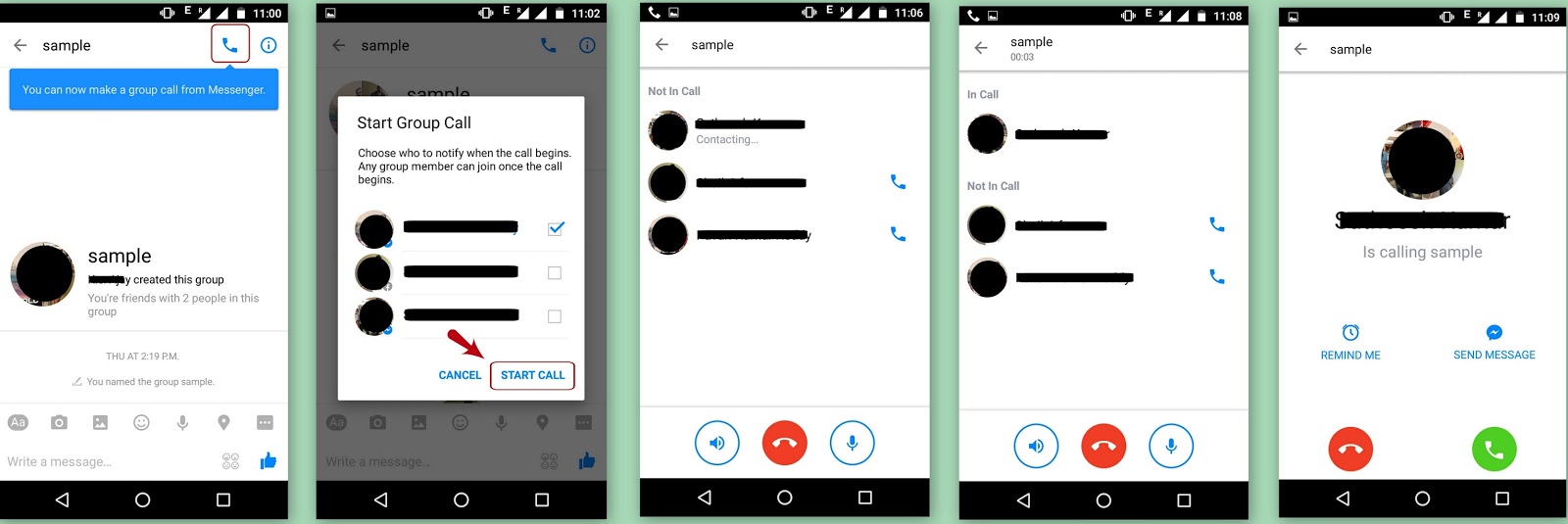
  1.   In group Chat, there will be a phone icon the top of screen. Tap that phone icon.
  2.   It will show up a pop-up “Start group call” with list of members in the group. You can select the participants of the voice call from that members.
  3. Then you will be taken to screen where you can see the selected members will have status, contacting or ringing under their name.
  4.  If any participant answered your call in group. Then he will be moved to “In Call” section in same screen and remaining members will be in “Not in Call” section.
  5. If you want to add a new participant in group call. Then Tap that particular participant phone icon in the “not in call” section of same screen.  
That’s it. This way you can enjoy voice conversations with your friends in group over internet.In Messenger group voice call any participant who is in present group call can add a new participant. But there is no option of deleting a person from that group call while you are in on going call. Feel free to express you views about this.

Thursday

SHARE AND PREVIEW DROP BOX FILES AND IMAGES DIRECTLY THROUGH FACEBOOK MESSENGER

It seems that Facebook is keen on making it's Messenger App as one stop for all your messaging needs and sharing files with out leaving from the Messenger app. Messenger has included Drop Box (one of the cloud storage service) support to Android app and iOS app, by which you can directly share files (PowerPoint, PDF's etc.,), images and videos in your Facebook Messenger conversations. 


Previously, if you want share or send any content which is in Drop Box through Messenger App either first you need to download that content into your device and send the content or create a link to the content you want to share and send it in Messenger. This feature makes file, image and video sharing in Facebook Messenger App hassle free for the user. 

NOTE:

This feature in Messenger app can be accessed only if your device (i.e., Android or iOS) contains Drop Box App. Photos and videos you share will appear instantly in chat, while the files you share will have just link to them.

Procedure to Share and Preview Files, Images and Videos from Drop Box through Messenger App Directly:


In order to share and preview files, follow the below steps:
  1. Hit "More" button in Facebook Messenger conversation where you want to share.
  2. Then look for the "Drop Box" in the list of the apps in Messenger App.
  3. Select the file or image or video that you want to share in that conversation.
  4. It will take you to the confirmation screen with preview which has two options "Send" and "Cancel". Select "Send" option.
  5. That's it. File is successfully shared.
In Future Facebook is going to release update to Messenger App with Video chat heads. If you have any doubts feel free to post comment. We will get back to you, if we are able to answer it.

Wednesday

HOW TO ADD AND SWITCH BETWEEN MULTIPLE ACCOUNTS IN FACEBOOK MESSENGER APP FOR ANDROID

Now a days Facebook is working on some interesting features, to provide better and quality service to their users. In their Android Facebook Messenger App, Facebook included a feature which will support users to have multiple accounts in Messenger App. Before this update If you want to login with different account in Facebook messenger App for Android you need to logout of the present account and login with the other account. With the help of this update, in a single device you can login to two or more Facebook accounts and easily switch between these accounts easily.


How To Add Multiple Accounts In Facebook Messenger App For Android:


  • In the Facebook Messenger App for Android, on the right side top corner you can find the settings option. Click on settings option.
  • Then you will be navigated to a screen where you can find list of options. In that select "Accounts" option.
  • Next, click on the plus "+" icon which is on the top right corner of the screen.
  • Then a pop screen will be displayed asking the user to enter the other account "Email or Phone Number" and "Password".
  • Enter the credentials then select the button "Add".
That's all you need to do to add another account in the Facebook Messenger App for Android. Then you play around with different accounts in the single device.

NOTE:

While entering the other account credentials, you can see a small check box asking the user "Require  a password when switching to this account". You can check that box or not, it is based on your interest.

If you check this box, then each time you are switching to this account Messenger App will ask for Account Password

How to Switch between different accounts in Facebook Messenger App for Android:

This is simple, and similar to the process of adding the other account in the messenger app.
  • Select Settings option on the top right corner and then select the Accounts option.
  • It will display the list of accounts that are in Messenger App. You can select your desired account.
This is good feature from Facebook like Google. In google mail you can switch between accounts easily. That's how you can add and manage different accounts in Facebook App for Android.   

Friday

4 WAYS TO USE ANDROID APPS ON YOUR PC

Have you ever thought of using your PC as an android device?.Yes!Now it is possible.I would guide you through different ways.Where you can fulfill your wish of using android  Machine which will run all android apps.Also some apps let you sync favorites or other personal data with a companion program or some equivalent application on a PC,But mobile apps and their PC counterparts are rarely the same.So, it reduces the privacy issues.     


4 ways to use android apps on your PC are:

Bluestacks is a silicon valley based software company that produces the bluestacks software which is most probably the first software to introduce android apps to PC.But problem comes here is that blue stacks is available in free version but it slow down your system and when it comes to Youwave its in paid version which was we are not most likely to pay when we are getting a similar thing for free.so to overcome this problem Genymotion  have come.And also there is this official Android emulator provided by google as a part of the Android SDK.

1. BLUESTACKS:                                                


Bluestacks is one of the popular software amongst Android emulator for windows, this is not a complete software but mostly an app player.It has a simpler user interface.you can search for an app on playstore using the search field and install the app we need in our PC.The user experience could be a lot better if you have a windows 8 touch screeen display as you could perform action just the way you would do on android smartphone.If we dont have a touch screen instead of swipe click and hold mouse button,move the mouse cursor and then release.

Advantages:

  • Push Apps from  Bluestacks App to your device.
  • Ease of PC to navigate on PC screen.
  • Though it is not the best emulator for windows, it has great potential.

Disadvantages:

  • Not all features of an App can be used.
  • This Android emulator for Windows still have a lot of bugs freezing.

2. YOUWAVE: 

You Wave offers full android system unlike Bluestacks app player the menu and options are  just like a regular android home screen, however you wave is a paid application but comes  with ten days of free trial to try out the software, this is the only android emulator for windows on our list which doesn’t offer free version. You wave android emulator for windows  works on resources from a software called virtual box, if this piece of virtualization software is installed on your system then you will have to remove it before installing the you wave because both will be relying on same services.                                           


You may decide to install android on virtual box by skipping you wave but that calls for more work however by doing this you don’t have to pay to you wave makers. Unlike Bluestacks, you wave doesn’t come pre loaded with top apps however you can install play store to get your favorite apps, to install Google play Click the View menu, select Online Content, and click on the Google Play icon, then Click the View menu again, select Apps, and click the Google Play app to download Google play.

Advantages:

  • Complete Android user experience.
  • Fast performance with almost no lags.

Disadvantages:

  • It is paid App and free trial is only for 10 days.

3. GENYMOTION:

Formerly android vm has been upgraded to Genymotion, developers aim to replace android native emulator and increase its usage from just testing to presentation and much more, it is a quality & feature rich product. Genymotion is available for Windows, Mac & Linux. Like You Wave Genymotion does not rely on resources from virtual box, if you are trying to install it on windows the installation package is bundled with Virtual box but for mac and Linux virtual box has to be installed separately.


Genymotion has a lot of features to offer including but not limited to Wi-Fi, GPS emulators, hardware acceleration, command line utility & eclipse IDE plugin, developers goal is to include many more sensors in coming versions, click here to download Genymotion.

Advantages:

  • Very fast when compared to other Android Emulators.
  • It is free.
  • Completely developer friendly and normal user friendly.
  • You can use Accelerometer and other sensors(pro version features).

Disadvantages:

  • There is no official support to use Google Services.
  • Can't run on low end systems, minimum of 2 GB RAM is required.

4. OFFICIAL ANDROID EMULATOR:

Google provides an official Android emulator as part of the Android SDK. You can use it to run the Android operating system in a window on your existing computer. This gives you complete access to the entire Android operating system. It’s intended for developers to test their Android apps.

Unfortunately, the official Android emulator is rather slow and isn’t a good option for everyday use. It’s useful if you want to test apps or play with the latest version of Android, but you wouldn’t want to actually use apps or play games in it. 

Advantages:

  • It is officially produced by Google.

Disadvantages:

  • It lacks ease of users.
These are four main Android emulators available for Windows Operating systems. If you have any new approaches then please free to comment below. I will answer your queries. 

Saturday

TOP 7 VIDEO PLAYERS FOR ANDROID

Video playing is one of the areas where Google hasn't done a good part on Android. Its standard player is still giving a lifeless experience. Android's open developer market place allows users to replace the native android video player with a large variety of media applications and also a better definition and view.

Top 7 Video Players for Android:

MX Player:


MX Player is an excellent Android player for general purposes, and it offers great usability and features. It supports all kinds of gestures and pinch-to-zoom. The most important thing is MX Player features software and hardware decoding to be able to support many different file formats. On the main view screen, we have a screen lock, variable aspect ratio and subtitle controls and the rest of the options stay in the settings menu. But this player may need an additional codec pack, but it depends on the devices and app automatically scans our device after installation. It supports ads.

MOBO Player:


MoBoPlayer is a very popular video player app. It can detect the ‘video' on your device and supports folders too, so if you have all your content divided into categories, such as ‘TV Shows’, ‘Documentaries’, ‘Movies’, it will display this as such – though one tap can change the view to include everything on a single screen. One of the main selling points of this video player is that it will support pretty much any file-format, without the need to convert first. It also offers up separate codec download in case you do experience compatibility issues. Additionally, Mobo Player offers great support for subtitles, including SRT, ASS, and SAA, while you can sort all your videos by a number of criteria, including name, size, format, resolution and more. It’s a great player that performs consistently well in terms of playback and video quality, and is easy to boot.

V Player:


V Player an app with solid and consistent video playback, supporting most of the common file-formats out there. When you first launch the app, it detects all the video-containing folders on your handset. It has the ability to copy/paste links from YouTube and Vimeo to let you watch them directly in VPlayer, and save them for later. VPlayer doesn’t let you organize or filter your content all that well, however, and as such may appeal more to power-users rather than those just looking for a nice way to access and view their videos. Indeed, one of VPlayer’s big selling points is its hardware-accelerated decoding and rendering to HD, always remembers where you left-off, should you wish to cease viewing temporarily. It also supports dual core devices, playing 720p and 1080p videos. Finally, it’s worth mentioning that the fully unrestricted version of VPlayer is only free for seven days, after which you’ll need to cough up $5 for VPlayer unlocker.

VLC Player:


The official android VLC Player was launched last year, and the developers continue to improve the user experience according to the feedback. To match the powers of its desktop counterpart, VLC for Android devices supports almost any video format file type. Multi-audio and subtitles support paired with aspect ratio adjustment make it quite a powerful player, but bear in mind that Beta status means the app might be unstable and buggy. Nevertheless, VLC is quite a superior video player, and we recommend you give it a try.

REAL Player:


Real Player is one of the greatest player of the digital music space, and though you may have long-forgotten about its PC-based software, the Android app is actually really nice. It’s a video, photo and music-playing app, and to access the former you must cast your eye to the bottom where you’ll see an icon helpfully titled ‘Video’. You’re then presented with a folder view and ‘all’ view. You can search for any video stored on your device. RealPlayer is a great little all-in-one media app, but if you’re specifically looking to watch locally-stored videos, then you’d maybe be better with something a little more dedicated than this, such as MoboPlayer.

WINAMP:

Winamp synchronizes smart phone playlists with Winamp’s content on desktop computers via a USB connection or Wi-Fi. You can also customize your playlists on the go. Winamp for Android displays the basic media information, such as artist, album and the title, and interacts directly with Pandora, YouTube and Amazon’s MP3 store. Even though developers took time off to update the app.

BS Player:


BS Player is a solid video player for power users. It features hardware and software decoding and supports a large number of popular video formats. The interface is clean-cut and supports swipe gestures. In addition, this player has a variety of skins to customize the UI to suit your liking. BS Player supports subtitles, as well as built-in subtitles in MKV files. In addition, BS player can search for the appropriate subtitles online. “Pop out” window is one of the greatest features of this player and can be used to watch videos in a smaller window above other applications.

Friday

TRICKS TO DISABLE SEEN FEATURE IN FACEBOOK CHAT

Today most of the internet users are spending most of their time in Face book only. This is mainly seen in Youth and Students. Mainly they use this to chat with their friends, Share their information with their friends and many more things. Face book, Giant in Social Media has been improving their standards in their implementation of their Chat feature. One of this is, feature of displaying information whether the opposite person in chat had seen your message by displaying "seen" below your message. This feature has been updated by Face book half an year back.
                                       
     
The "seen" feature in Face book chat is very useful because it lets you to know whether your friend has seen your message or not. This feature helps in finding the status of our message to your friend. But with this feature there raises some issues between two friends in the matter of ignoring one's message.

I mean to say that, if a friend of you sent a message you have seen that message but in a hurry you are not able to reply him/her at that time he/she thinks that you are ignoring him/her by not sending reply to his/her message. At that time you think of necessity of the presence of disabling "seen" feature in Face book. 

For those who think about this option please read below know how to do that. Some people may use to chat via Android device and some people by their PC. For them I give different solutions based on the platform they chat. See below......

Disable "SEEN" Feature in Face book Chat:

1. DISABLE "SEEN" FEATURE IN ANDROID:       


Instead of installing Face book messenger in Android devices you Install PRIVY CHAT FOR FACEBOOK, which works as same as the Face book messenger. This App makes users to quickly read the messages by without marking them as read or seen. This helps the users to give an satisfied reply without any hurry to give an instant response to the message. This is the only thing that will save from "seen" feature in Face book chat while doing chat in an Android device.

2. DISABLE "SEEN" FEATURE IN PC:

a) IN GOOGLE CHROME:

Google chrome is one of the browsers, which is very famous and mostly used. This Google Chrome is developed by Google. We can disable "Seen" feature in PC while using from Google chrome by installing an Extension named "FACEBOOK UNSEEN". This extension when enabled will make your friends not notified about when you have seen the message.

To install:
  • Go to settings in Google Chrome, and then click on settings option.
  • Then go for extensions in the settings window.
  • There in search bar, type as "Face book Unseen".
  • The extension gets displayed on the screen, then click on the extension and then click on ADD TO CHROME.
  • Then it will be installed in Chrome and make it enable while doing chat in Face book.
This is how we can disable "seen" feature on Face book Chat in Google Chrome of PC. With this extension we can turn on and turn off seen feature whenever you want. 

b) IN MOZILLA FIREFOX:

In Firefox also we can disable "seen" feature on Face book chat with the help of Block Site plus plugin from Mozilla Firefox Add-on. To do this follow procedure below.....
  • Download and Install Block Site Plus plug-in from Firefox Add-on[ To download CLICK HERE].
  • Then in Mozilla start page go to Add-on, there click the Extensions button.
  • Then click the options button in the Block Site Plus Add-on.
  • Then a new window gets opened, in that window check the "add this site" option and paste below given URL in the text box below the "add this site" option.
  • And then select Quick add and Ok buttons to finalize the procedure.
URL:: " facebook.com/ajax/mercury/change_read_status.php "
                     
But the only disadvantage with this option in Mozilla Firefox is you must do the above procedure every time you open your Firefox Browser and before proceeding to chat. 

In the above ways you can disable "seen" feature on Face book chat. If you know any new methods and procedures to disable "seen" feature on face book chat please comment below. And if you have any queries about this topic please comment below. 

Wednesday

HOW TO UNLOCK AN ANDROID DEVICE AFTER TOO MANY PATTERN ATTEMPTS?

Today most of Smartphone users are well aware of the Android operating system. Because most of the Smartphone’s are built with Android OS. But most of the Android device users don't know complete features and consequences of apps and steps respectively. One of them are "Not remembering their unlock pattern". Most of the people keep patterns as the security measure to avoid unauthorized entry into their mobile. But some people may forget and in some cases other people who are not owners of that Smartphone tries to unlock Smartphone without knowing the pattern at that time this issue raises. After too many pattern attempts your mobile shows that "Too Many Pattern Attempts! To unlock, sign in with your Google Account". 

Usually this case rises after 20 unsuccessful attempts to unlock screen by an wrong pattern.
                       
                        
At that situations users of that Android Smartphone feel very bad and fear about the thing happened to their mobile. There are many ways to unlock your Android Smartphone after too many pattern attempts. The top most six tricks are.......

Procedure to Unlock an Android Device after too many Pattern Attempts:

1. LOG IN TO YOUR GOOGLE ACCOUNT:

That means log in to the Google Account which is associated with your Mobile. Usually it is the Account with which you logs in to your Android market or Google play in your mobile. By logging in to that Google Account you can unlock the locked mobile by disabling and changing the pattern

Usually this procedure requires your mobile connected with internet by Mobile Data or Wi-Fi. If your mobile doesn't contain the both Mobile Data and Wi-Fi then this procedure won't work to unlock the locked Smartphone. Then go for second procedure...

NOTE:

Google Account associated with your mobile is the Account which is used during signup and never used afterwards. You can conform the a Google account is associated with your mobile by going to page: https://market.android.com/account and then select Settings tab, there you can see you device. If that is not present then that Account is not associated with your Device.

2. MAKE A CALL TO LOCKED ANDROID MOBILE:

In this method you need to call the locked Android device whether it may be Smartphone or Tablet from another mobile. Answer call, during call press the Menu button in the locked mobile and enter into the Settings. Then go to disable Pattern Lock feature during the call itself.  

After the call ends locked mobile will be working normally without entering any patterns. This method can work for only some mobiles only.

3. FORMAT DEVICE BY HARD RESET:

If the above two methods are not working for your device then you can get access to your mobile by making hard reset of the locked mobile. But this hard reset will erase your data stored in the mobile like contacts, images, audio and video files. But you need to compromise one thing to get another thing in extreme cases.

This hard reset can be done by enter into a separate mode. Usually this mode can be achieved by pressing POWER+HOME+VOLUME buttons all together for most of the Android devices. For your device you check your mobiles user manual how to reset the mobile. This procedure will restore your mobile to the original setting which appeared at the time of purchase.

4. BY SCREEN LOCK BYPASS APPS:

This trick works only when you know your Google Account Name and Password which is associated with your device. If your locked mobile has an internet connection just go to a computer and sign in at play.google.com and install Screen Lock Bypass Apps on your device. With this you can Bypass the pattern lock in your device.

Some of the Apps are: Bypass Screen Lock Android and more.

5. WITH ANDROID DEBUG BRIDGE [ADB]:

Android Debug Bridge (ADB) is a versatile command line tool that lets you to communicate with a Connected Android-Power Device or emulator instance. This technique requires an USB cable to connect your Smartphone with the computer. After connecting you need to enable "USB Debugging Mode". And issue commands to your device through ADB by which you can bypass the Screen Lock.

This technique requires assistance from any of the expert, a normal user is not aware of this procedure. so, please take assistance for issuing commands.

6. HARD RECOVERY:

This is the procedure which is not familiar to all the persons they include some of the most experienced technical personalities also. This method is applicable for only some devices. 

procedure:

  • Restart your Android device.
  • Then press home button continuously at the rate of 4-5 presses per second soon after you see the company logo while restarting.
  • If pressing is good enough then you can enter inside your device.
  • After entering quickly go to settings and disable pattern lock feature of your device.
This way you can unlock your Android device by hard recover which is named by me.

REMEMBER: 

There is no guarantee that all the tricks work correctly to your device. So, please verify twice before proceeding. If you know any new tricks please comment below.  

Tuesday

8 TIPS TO SPEED UP YOUR ANDROID MOBILE

Android O.S. is most used O.S. in the present day Smartphone’s and Tablets. You may have noticed that your Android device is slowed down considerably when compared to its initial performance. Users feel uneasy with their device performance and want to SPEED UP THEIR ANDROID PHONE but some of them don't know HOW TO SPEED UP AN ANDROID PHONE.


In order to speed up an Android Device some steps must be followed. Some Tips and Tricks to make your Android device performance like new one is...........

8 Tips to Speed up Your Android Mobile:

1. CLEAR APP CACHES:


Due to use of device continuously, cache data can built up in your device and eat up precious system resources which will affect the performance of your device. This cache data can be cleared on any individual app by visiting the property page in app settings menu and tapping the "CLEAR CACHE" button. The cache data can be cleared by many free apps available in Android Store i.e., Google Play Store they are Clean Master, App Cache Cleaner, Cache Cleaner Easy....and many others. 

2. MOVE OR DISABLE OR UNINSTALL UNUSED APPS:

You may be installing various apps in your device for one time or rare use like a shopping app which is installed for rare use for shopping online. These apps may be running background and utilizes many of the valuable system resources.

you know that internal storage of any device is limited and less free space may decrease the performance of your device. It is recommended to uninstall or Disable or Move the unused apps. Apps can be Uninstalled by going to "SETTINGS>APPS MENU>SELECT APP TO BE UNINSTALLED". 

Your device may contain some preloaded apps they can't be uninstalled they can be Disabled or Hidden by this method.
You can also move your apps from internal storage to the external storage or cloud storage...To move to SD card "SETTINGS> APPS MENU> SELECT THE APP TO BE MOVED> SELECT MOVE TO SD CARD".

3. BY USING SOME PLAY STORE APPS:

Some of the tasks may be running background which are unnecessary, Apps like AUTO TASK KILLER can kill chosen apps for every 'n' seconds, Which will free up the RAM space and increase the performance. A Good Antivirus can find out the spam’s and viruses and enhance the performance of device. START UP MANAGER stops the number of apps from starting automatically when the phone Boots up. SPARE PARTS Apps gives more settings to configure faster window and Transition Animation.

4. REMOVE UNNECESSARY WIDGETS AND SHORTCUTS:


Many people will think that the main advantage of the Android Device is Widgets, which will help to find information very quickly and easily. But the presence of the unnecessary widgets and shortcuts to the Apps may occupy memory and will decrease the performance of the device. Removing of unnecessary Apps and shortcuts free up memory space and increase the performance of the device. They can be removed by LONG PRESSING THE WIDGET OR SHORTCUT and DRAGGING THEM TO OFF SCREEN.

5. LIMIT LIVE WALLPAPERS AND DISABLE ANIMATIONS:


Live wallpapers in Android are designed to offer user a better experience, which provide users with rich, animated and interactive background. But live wallpapers can slow down your device and drain battery also. Limiting the use of Live Wallpapers speed up an Android Device.

You can speed up an Android phone by disabling the Animations within the Operating System. This can be done by going to SETTINGS> DEVELOPER OPTIONS> ADVANCED> then UNCHECK the ANIMATION option which will disable the Window, Transition and Animator animation scales.

6. REGULAR SOFTWARE OR FIRMWARE UPDATES:

Firmware is a software (Programs or Data) that has been written to ROM(Read Only Memory), it is the combination of Hardware and Software. Regular updates to the Firmware can fix bugs, lag and some other issues which lead to speed up an Android phone. To see whether there is any update available go to SETTINGS> ABOUT PHONE> SYSTEM UPDATES.

7. ROOTING OF ANDROID DEVICE:

Rooting is a risky option to increase the performance of the device. This option is more suitable for risk takers and advanced users. Unsuccessful rooting results in malfunctioning of the device and Successful rooting void your device warranty. Routing opens doors for new features and greater performance boosts. By rooting you can Over clock your processor and install the custom ROM. Custom ROM is not an official one. Over clocking of processor speeds up the Android Device. It is not recommended solution to speed up an Android Phone because any mistake may cause irreversible damage to device.

8. RESTART OR RESET ANDROID DEVICE:

Restart and Reset are the temporary options to speed up the Android phone. But performs well. Reset of Android device erases everything and brings your phone back to its original state. Before resetting your device make backup to your contacts and saved information from being erased. By following and implementing these tricks one can increase the performance of their android device which will Speed up an Android Phone. 

TOP 12 REASONS TO ROOT AN ANDROID DEVICE

Android is a software stack for mobile device that includes an operating system, middle ware and key applications. Android main focus is on security of the mobiles. So some of the features are blocked from accessed by users. Rooting of your Android device provides you extra permissions to get through the mobile and can do anything to any file or folder in the system. Of course it is dangerous, if it is wrongly executed. If it is successfully done then you can play with your mobile in and out. Here are 12 top reasons which are making users attractive towards Rooting of their Android device. Let us see......          


12 Reasons to Root an Android Device:

1. REMOVE PREINSTALLED CRUDWARE:

As you know that every Android smart phone arrives into market with preinstalled software’s and applications. Some of them are really useful for smooth functioning of Android smart phone but some are not really necessary. Apps and software’s of that kind may drain battery and waste space. These type of useless apps can be uninstalled only after rooting Android device. To determine which preinstalled apps are useless, first freeze those apps and check whether your Android device is functioning normally or not. Then uninstall those useless preinstalled apps which will free up space and save battery. you can not uninstall these kind off apps unless you root your Android device.

2.  PRESERVE YOUR PHONE's BATTERY LIFE: 

 
As the performance of the phone increases then the battery life of the phone gradually decreases. Although there are many apps which will boost up the battery of the smart phone. Some of the most powerful power saving apps is not compatible with the original versions of some Android mobiles. For those smart phones it is necessary to Root. There are some apps available in Android store, which will hibernate apps which are not in use.

3. OVERCLOCK TO HIKE PHONES SPEED:


 Over clocking of Android smart phone is nothing but making microprocessor of your Android device to run faster than ever before. Over clocking also increases the speed of hardware components of the mobile. This over clocking can be gained by apps without rooting, but the matter is if you over clock your smart phone without rooting it may drain you mobile's battery faster. There are several root only apps available in Android market which can over clock and also decrease the battery drain. Some of those apps are SETCPU and others.

4. TO INSTALL CUSTOM ROM:

ROM which is present in your Android mobile by default is called as the Stock ROM. But mobile companies modify this stock version of ROM to make their products unique from others. ROM which is customized or developed from original source code of Android and differs from it in features and looks is called Custom ROM. These custom ROMs are not developed by Google or any mobile vendors. But developed and maintained by contributors. Custom ROM can install in an Android mobile only after Rooting. Custom ROM allows user to gain Root access. Custom ROM adds new features, and changes the look of your smart phone. 

Some of the custom ROMs are : " Cyanogenmod, AOKP, Eurostank".

5. ACCESS BLOCKED FEATURES AND INSTALL INCOMPATIBLE APPS:

Some of the features of Android mobiles and tablets are hidden from access to the user for some security reasons. By Rooting you can explore dark corners of Android and can access all Blocked and Hidden features by the Carriers. There are certain apps available in Android market which is not compatible with all the versions of Android. Once you are done with successful Rooting, then you can install hundreds and thousands of useful apps where other normal Android users can not access. Rooting will change the Administrator privileges and makes them favourable to user.

6.  TO HAVE SCREENSHOTS:

Android versions before Ice Cream Sandwich[ICS] is not equipped with the ability to take screenshots with the mobiles. But few devices include it as an added feature. If you want to have screenshot taking feature to your mobile you must wait until your mobile vendor release ICS update to your mobile or you need to buy a new Android mobile. But if you root your Android mobile you can get screenshot feature by installing some screenshot apps in your mobile.

Some of them are: "Screenshot easy etc,”

7. TO BACKUP YOUR PHONE:


 If your Android device is not rooted, then you can back up things like Apps and data but you cannot be able to backup system apps and data. Back up will help you to restore your mobile to the original stock ROM. At that time if you are having back up of data then it makes easy to restore. On ordinary phones you can only backup "surface data", but on Rooted phone you can backup everything of your phone by using some of the software’s like "titanium backup" which will create full backup's. This will help if anything goes wrong.

8. TO GET LATEST UPDATES:


 Users of Android device feel frustrated if Android announces any new version but their devices are not getting that upgraded versions. Bit in case if your mobile phone is rooted you can get the latest updated version of Android. You can get that update from group of developers who port the latest the version. 

One of the best sources for latest version of Android for your rooted device is "XDA Forum".

9. EXTERMINATE CARRIER IQ:


 Carrier IQ is a private mobile software company which is providing diagnostic analysis of smart phone to the networks via the installation of software’s on user phone. As per stats this software is deployed in more than 150million devices all over the world. This IQ collects all the information about the working of smart phone and submit it to MSIP. This collection of information hurts some people. For them this software can be removed only after rooting of their Android device.

10. PROVIDE MORE VISUAL CUSTOMIZATION:

Although the non-rooted Android mobiles provide lots of visual customization options. Rooted mobiles will help you to have number font designs and can play with those fonts. Rooted Android mobile phones will provide high screen quality than non rooted mobiles. Number themes and wallpapers can be applied to the Rooted Android mobiles which gives you a new look of your mobile.

11. Wi-Fi AND BLUETOOTH TETHERING:

Tethering means sharing Internet connection of an Internet-capable mobile or tablet with other devices. This sharing can be done over Wi-Fi or USB or BLUETOOTH. Wi-Fi and USB tethering is disabled in some of the Android devices and Bluetooth tethering is not possible in any case. But one can enable Wi-Fi and Bluetooth tethering in any Android devices by only rooting that device.

12. TO COMPLETELY OWN YOUR MOBILE:

Some people Root their Android mobile for just knowing what it is. But some people want to know what it is capable of and what it is. They want explore each and every corner of their mobile. So that they can completely own their mobiles. Hence, Rooting helps you to completely own your mobile.

Like a coin, advantages of Rooting are only one side but disadvantages are other side of the coin. Rooting can void warranty of your handset and unsuccessful rooting can brick your mobile. Be careful while rooting your Android mobile.

If there are any other reasons to root Android device, please comment below. If you have any queries feel free to comment below. I will respond to your queries as soon as possible.